
Sick of browser plugin ad-blockers not doing their job? Lets create a powerful network-wide ad-blocking server using AdGuard.
Along with better blocking, network-wide ad blocking servers can block ads for devices which don’t commonly utilize browser plugins, such as phones or Internet of Things (IoT) devices.
AdGuard is a great option due to its ease of use and extensive and well maintained blocklists. It functions by using massive lists of domains to block DNS requests sent to it. These domains are categorized, which means you can use lists containing domains used for advertisements (obviously), domains which are known to host malicious content, domains hosting adult content and more.
You can even create your own blocklist of domains.
Before you start, you’ll need a server to install it on. AdGuard works well on Ubuntu Server, either in a Virtual Machine or bare metal.
Tutorial
Once you have a server Operating System ready:
Step 1:
Update your server.
sudo apt update && sudo apt upgrade -yStep 2:
Download and run the installer script.
wget --no-verbose -O - https://raw.githubusercontent.com/AdguardTeam/AdGuardHome/master/scripts/install.sh | sh -s -- -vYou will be prompted to enter the root password.
Step 3:
Once the script has completed installing, you will see the following output:
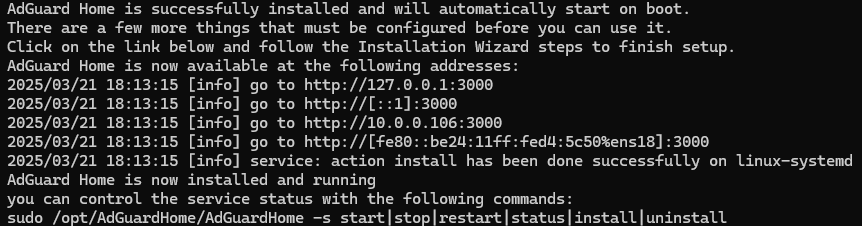
This output includes the addresses that you can access the AdGuard Web GUI from. Use the IP address that is within the RFC 1918 range: Private-use IP addresses
Step 4:
In your browser, you should see a page like this:
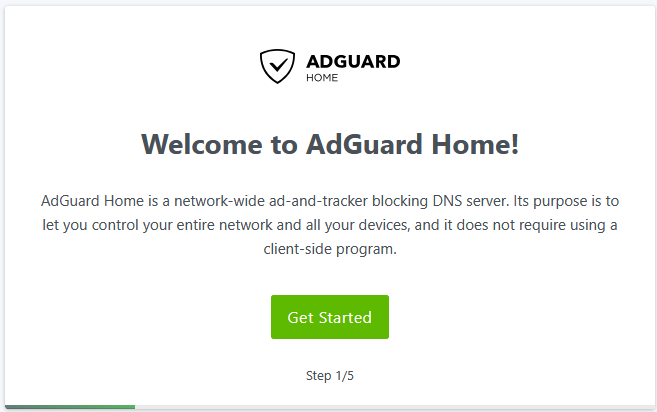
Hit ‘Get Started‘ to start the setup process.
You will be taken to the network setup page. By default, your server might have multiple interfaces available to use, in the drop down boxes, select the one with the IP address you have browsed to.
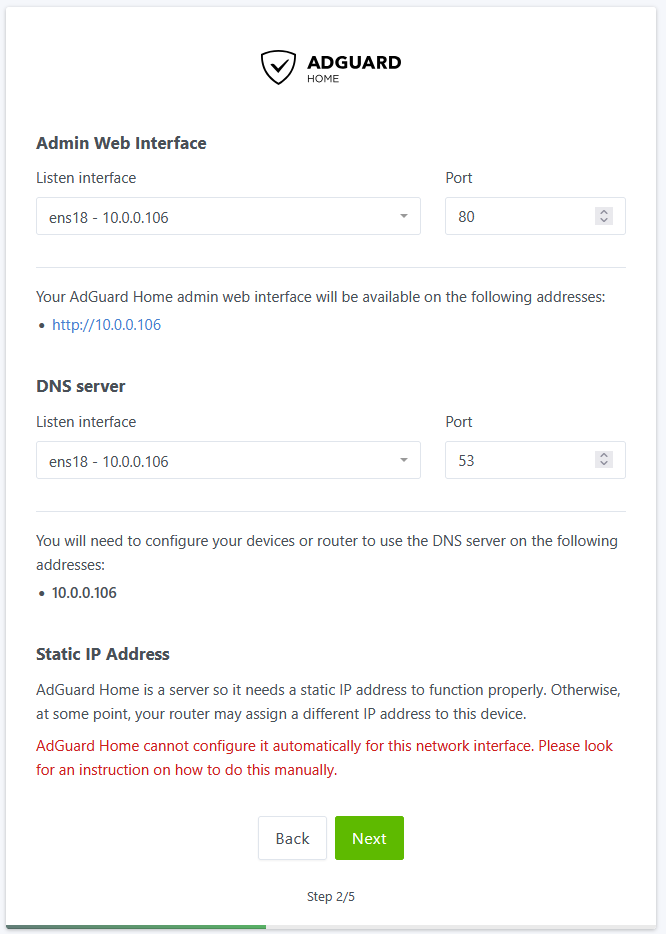
Next, configure your local username and password, and follow through the remaining screens.
Step 5:
You will be redirected to the new GUI port of 80 (HTTP). Now you can select the blocklists you want to use, by navigating to Filters -> DNS Blocklists
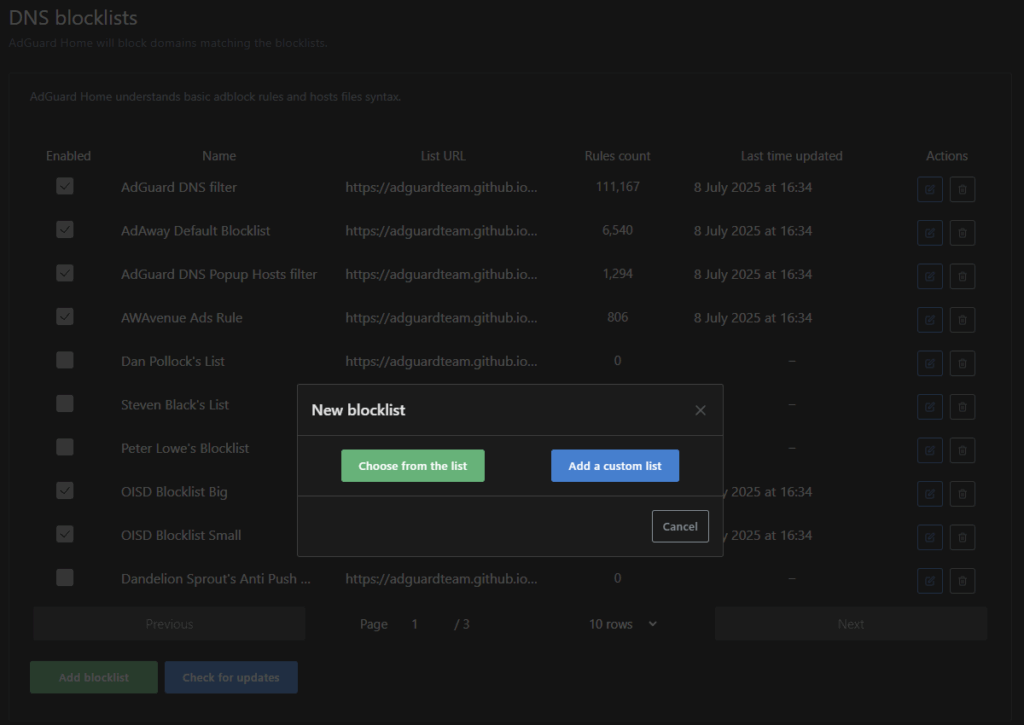
Select Add blocklist and choose from the list provided. Be careful to read each one before selecting, as some lists can block legitimate providers, such as the list designed to block all Google domains.
You can also create or add custom blocklists. We’d recommend you use the Wickenfix.it IP Blocklist. To do this, select Add a custom list from the options:
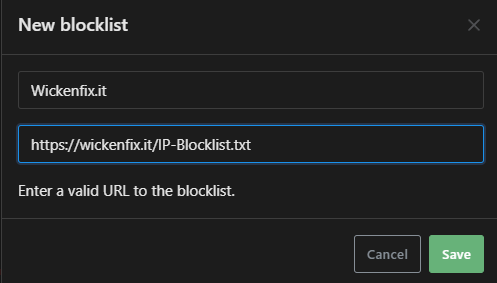
Then, give the custom blocklist a name, and enter the URL:
https://wickenfix.it/IP-Blocklist.txt
Step 6:
Now it’s time to put the server to work. On your router/firewall, change the upstream DNS server to point towards the IP address of your new AdGuard server. All incoming DNS requests will then be forwarded to and filtered by AdGuard.
If you start to encounter any connectivity issues, the ‘Query Log’ is the best place to look. Search for the domain you cannot browse to in there to see if AdGuard is blocking it.